Trading Group Member Pages
Members of a trading group can open their shared bots pages to the rest of the group. The Member Pages tab on the Group Shared Bots page collects those pages in one list, so members can browse each other's bots without the pages being public.
Member pages and group shares
A group has two ways to pass bots around, and they work side by side:
- Group shares are individual bots a member shares into the group's library with Share Bot with Group. They appear on the Shared Bots tab of the Group Shared Bots page, where members can add them to their accounts. See Share with your trading group.
- Member pages are members' own shared bots pages, opened to the group. Each one is a whole page at /shared/Name holding the bots that member chose to list, and the Member Pages tab links to them.
A member page is the same page the member would share publicly; who can open it is the only difference. A member can open their page to the group, to the public, or to both.
Browse your group's member pages
Open Group Shared Bots from the Bots menu. When your group has member pages, the page carries two tabs: Shared Bots, the group library you already know, and Member Pages. The Member Pages tab lists each page by its Share Name, the page's address, next to the member's Group Display Name (a member who has not set one shows as Member). Click a share name to open that page in the same tab.
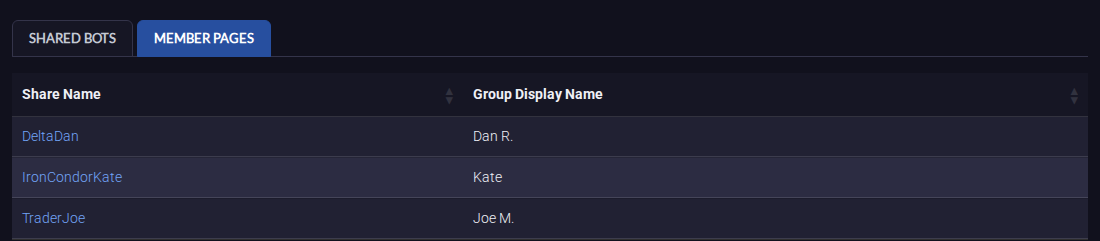
On a member's page you can view each bot's settings, copy a bot to your account, or run a Backtick on it, exactly as on any shared bots page. Visiting a Shared Bots Page covers all three.
The tab only lists pages you can actually open: members who turned on My group, have a page name, are on a plan that includes shared bots pages, and have at least one bot listed. Until someone qualifies, the tab reads No member pages yet.
Share your page with the group
- Set up your page in the Shared Bots Page card in Account Settings: claim a page name and list at least one bot. See Set up your page in three steps.
- Under Who can see your page, turn on My group. The hint below it reads Members of your group's name and notes that it also lists you on the group's Member Pages tab.
Leave Public off to keep the page within the group, or turn it on as well to let anyone with the link see it. Your group's name never appears on your page; only you see it, in the banner at the top of your own page.
The switch follows you, not the group. If you move to another group or leave your group, My group turns off, and you choose again in your new group.
For group administrators: Allow member pages
How member pages are controlled depends on the kind of group:
- Groups that do not manage their members' subscriptions always have member pages. There is no switch; each member decides for their own page.
- Groups that manage their members' subscriptions have an Allow member pages switch, off until an administrator turns it on. It sits under Group Shares in the Group Information card of the Group Management hub, next to Default copied bots to quantity 1. It saves as soon as you flip it.
Turning Allow member pages off hides the Member Pages tab and pauses member pages: pages open only to the group stop opening for members, and those members see Paused on their Shared Bots Page card. A member whose page is also Public keeps showing it to anyone with the link. Members keep their My group choice, so turning the switch back on restores every page as it was. While the switch is off, members who had not opted in cannot turn My group on; the switch tells them Your group doesn't allow member pages.
Run a Trading Group covers the rest of the Group Management pages.