Group Shared Backticks
If you belong to a trading group, you can share Backticks with it the same way members share bots. Shared runs appear for every member on the Group Shared Backticks page, where anyone in the group can review the results and copy a run into their own library.
Share a Backtick with your group
Look for the group share icon anywhere your completed runs live: under Recent Backticks on the Backtick Dashboard, on each row of the Backtick Library, on the Edit/View Backtick page as a Share with Group button, and in the action bar of your own results page. On a run that is already shared, the same control reads Stop sharing with group, or Stop Group Sharing on the Edit/View Backtick page. Only completed runs can be shared, so the group always sees real results.
The Share Backtick with Group window collects how the run appears to the group:
- Display Name for Group: the name members see on the group listing, between 4 and 40 characters. It does not have to match your private Backtick name.
- Description: optional, up to 500 characters. Describe the strategy, market conditions, or anything else members should know.
- Group Tags: tags that help members find the run on the group listing. Group tags belong to the group itself; group administrators create them, and everyone can filter by them.
- Prohibit Share Links: when on, members who copy this run cannot create share links of their own outside the group. See below for how far that restriction reaches.
- Allowed Tiers: shown only to group administrators of groups that restrict sharing by membership tier. Leave it empty, or pick All Tiers, for unrestricted access.
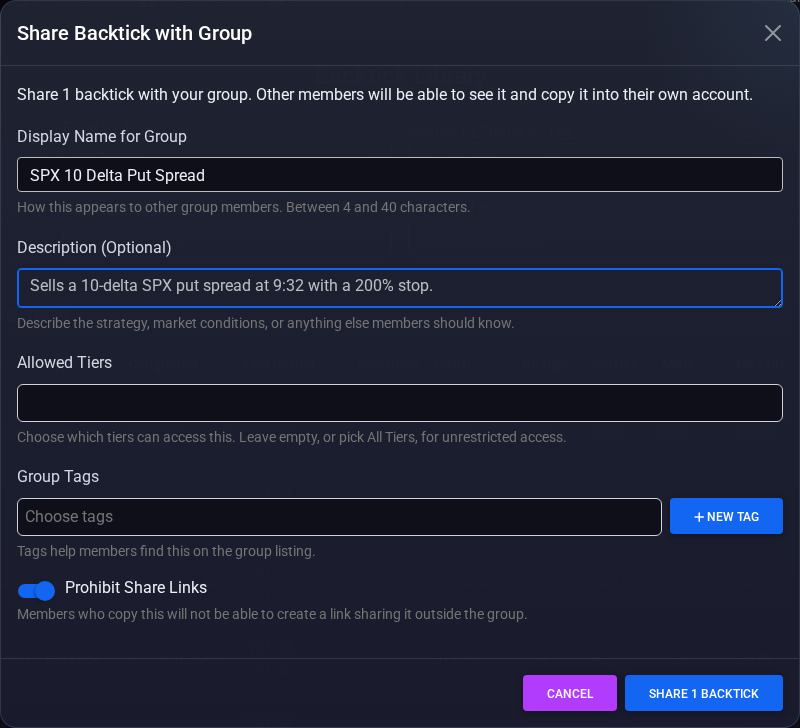
To share several runs in one pass, use Select Multiple in the Backtick Library, pick your rows, and click the Group Share button. Names are taken from each run and shortened to 40 characters; you can rename any of them from the group listing later.
The Group Shared Backticks page
Every member of a group finds Group Shared Backticks under the Backtick menu. Each shared run is a row showing who shared it, when, its status, and its headline results: total profit or loss, CAGR, Sharpe, Sortino, MAR, maximum drawdown, trade and position counts, the test type, and the test period. Group tags appear right on each row, and expanding a row shows the sharer's description.
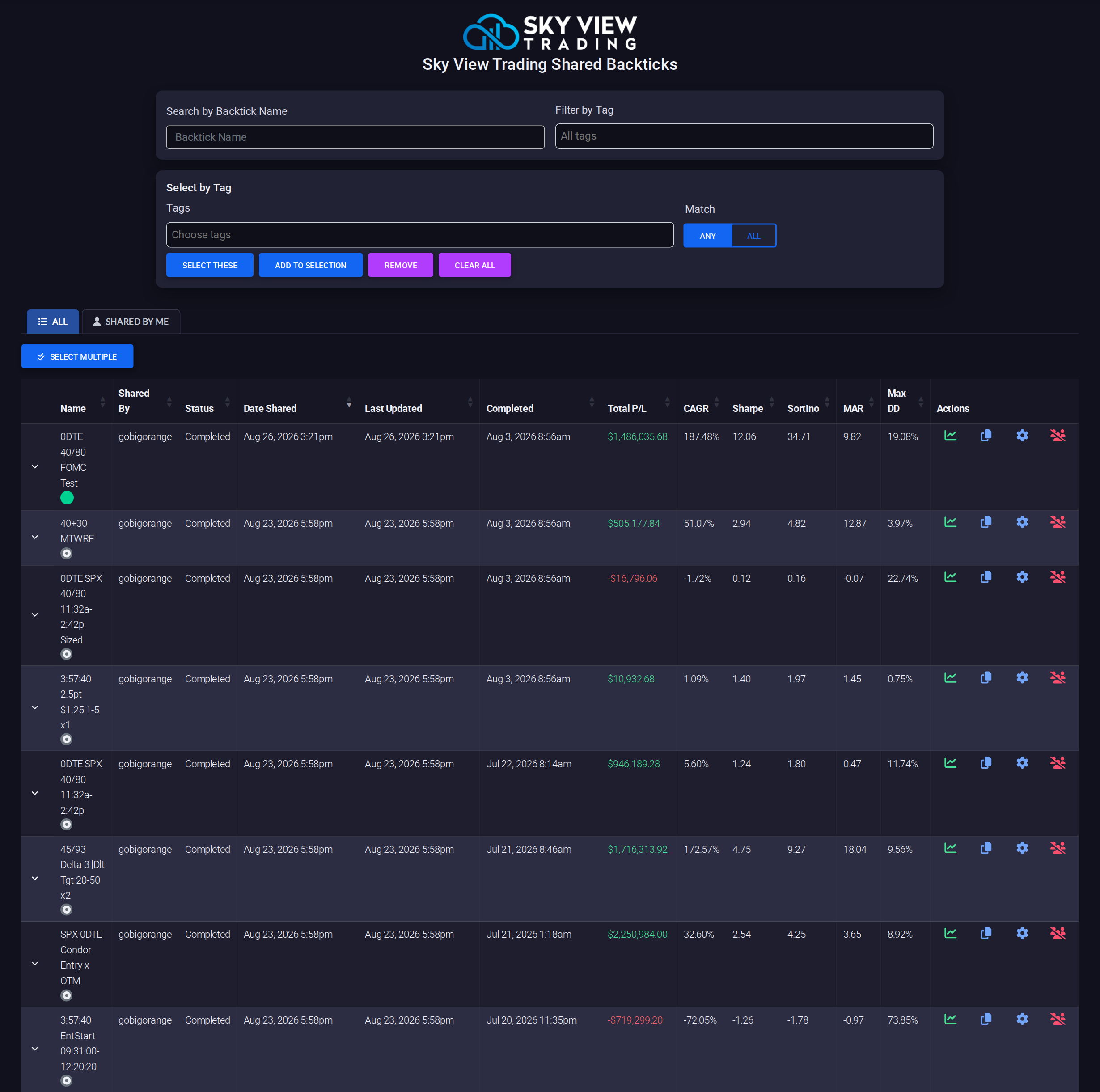
Two tabs split the listing: All shows everything shared with you, and Shared by Me shows just your own shares. Search by name or use the Filter by Tag control to narrow the list; clicking any tag chip on a row toggles that tag in the filter.
Row actions on a completed run:
- View Results opens the run's full results page.
- Copy to my library copies the run into your own Backtick Library.
- Edit this share and Stop sharing appear on shares you created, and on every share if you are a group administrator. Editing opens the Edit Group Share window with the current name, description, tags, and settings filled in; stopping a share removes it from the listing for everyone, though copies members already made are unaffected.
Select Multiple turns on bulk actions: every member can Copy to My Library in bulk, and members can Stop Sharing, Manage Tags, or update Share Settings on the shares they created, several at a time. Group administrators can bulk manage every share in the group.
View a shared run's results
Opening a shared run shows the same results page you get for your own Backticks, read only, topped with a Group Shared Backtick banner naming who shared it and their description. The sharer's private details are not part of the view: their brokerage accounts appear as generic labels, their journaling notes are omitted, and the position settings drill-downs stay closed. To study a run's full configuration, copy it; the copy in your library is completely yours to open, edit, and rerun.
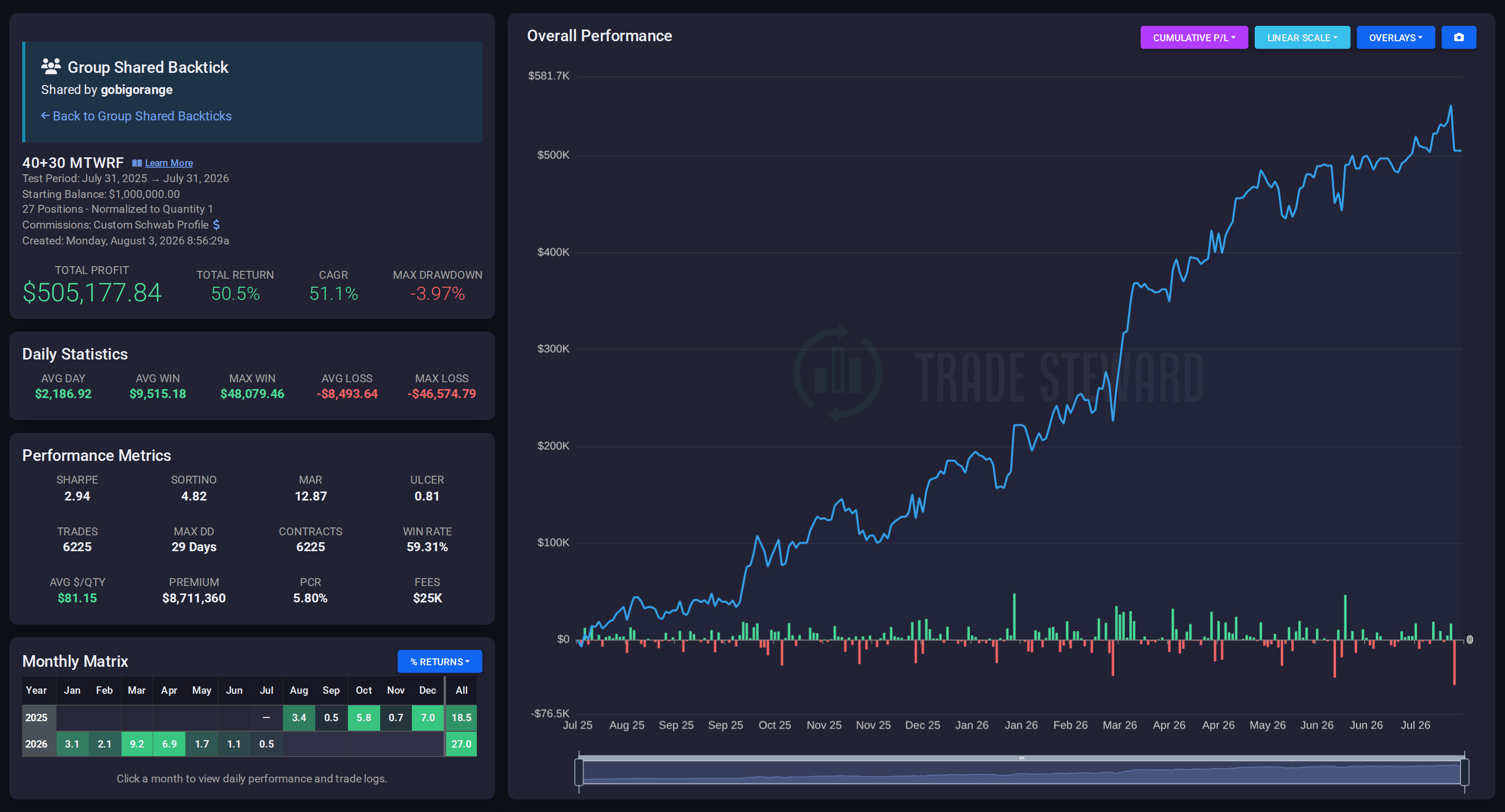
Viewing and copying shared runs requires an active Backtick subscription of your own. If a share stops being available to you, whether because it was unshared, the sharer left the group, or a tier restriction applies, it simply no longer appears.
Copy a shared run into your library
Both the row action and the bulk Copy to My Library work the same way: each copy arrives in your Backtick Library as a fresh draft with no results, so nothing you already have is changed and nothing runs until you queue it. A single copy opens straight into the builder; from there the usual loop applies: adjust, queue, and compare with your own runs. Your default commission profile replaces the sharer's, and their position accounts are replaced with placeholders you can reassign. If the original included an imported signals file, that data is only carried along when your plan includes Backtick Premium.
What Prohibit Share Links protects
A group share made with Prohibit Share Links turned on keeps the strategy inside the group. The restriction travels with the run:
- A copy of the run cannot be shared with a public results link, and neither can a copy of that copy.
- Positions copied out of the run carry the same restriction.
- Bots created from the run inherit it too: their share link option is unavailable, with a note that the bot was copied from a bot that doesn't allow sharing.
The restriction only ever blocks creating new links. Disabling an existing share link is always allowed, so nothing can get stuck published.
When someone leaves the group
A member who leaves a group, or is removed from it, takes their shares with them: every bot and Backtick they had shared disappears from the group listings immediately. Their own runs are untouched, and copies other members already made remain those members' property. Rejoining does not restore old shares; they would need to be shared again.
Related reading
Share Backtick Results covers the other sharing model, a read-only public link that works for anyone, even without a tradeSteward account. Clone, Share, and Import Bots covers the bot side of group sharing, and Run a Trading Group covers the administration side, including group tags and tier access.