Your Shared Bots Page
Your shared bots page is a page of your own on tradeSteward, at an address like www.tradesteward.com/shared/YourName, that lists the bots you choose to share. Visitors can read each bot's settings, copy it to their own account, or run a Backtick on it, while your trading accounts, notes, and performance stay private.
What a shared bots page is
Instead of sending a separate link for every bot, you send one address. Everything you list shows up there under a public title and description you write, and anyone who can see the page can work with those bots in three ways:
- See each listed bot's symbol, legs, entry, and exit, and open its full settings read only.
- Copy a bot to their own tradeSteward account.
- Run a Backtick from a bot without adding it to their account.
The page shows your page name and the bots you list, nothing else. It has no performance statistics, and it never shows your bots' real names, your trading accounts, your notes, or your group. Visiting a Shared Bots Page walks through exactly what a visitor sees.
Set up your page in three steps
Everything about the page itself lives in the Shared Bots Page card in Account Settings (the user icon in the top bar, then Account Settings). The card opens with a What visitors can do panel, then lays the setup out as three numbered steps below it. A chip next to the card title tells you where things stand at a glance: No name yet, Off, Public, My group, or Paused.
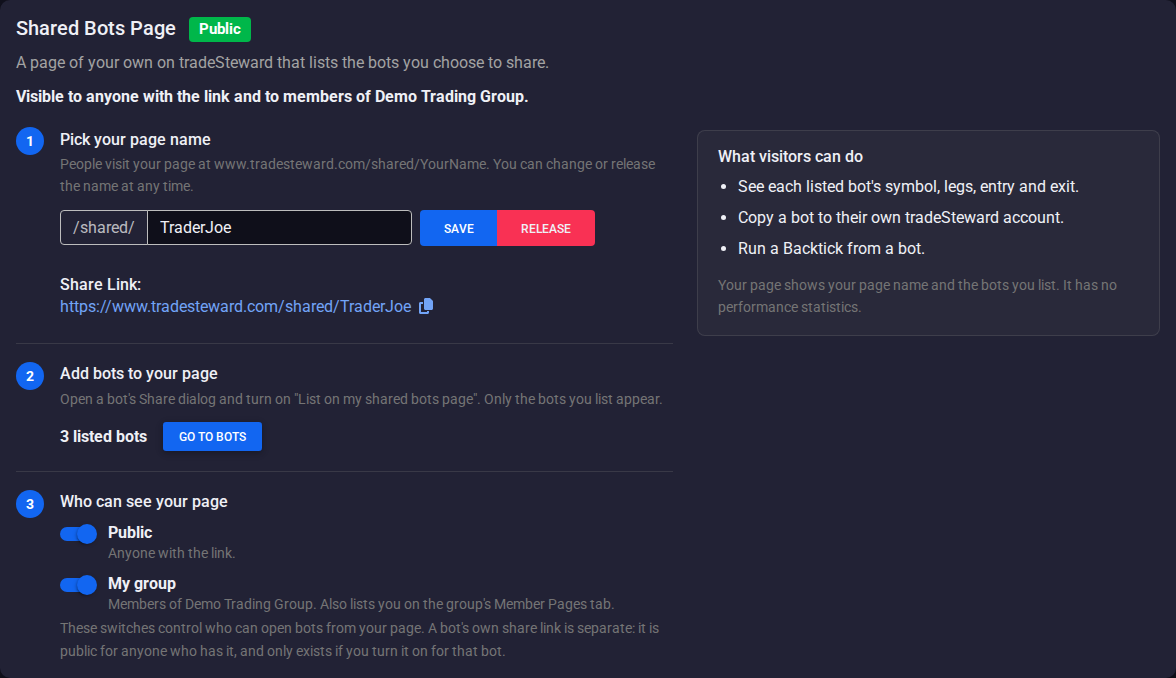
1. Pick your page name
Type a name in the field next to /shared/. As you pause typing, the card checks the name and answers under the field, for example That name is available. or That name is taken. Click Save to claim it. The card confirms with Your page name is saved. and shows your page's Share Link with a copy icon, ready to paste anywhere.
Claiming a name does not show anything to anyone yet. Until you turn on Public or My group in step 3, only you can see the page.
2. Add bots to your page
Only the bots you list appear. To list one, open its Share dialog from the View Bots page or the bot's edit page and turn on List on my shared bots page; Listing and unlisting bots below covers the details. The card counts your listed bots (for example, 3 listed bots) and has two buttons: View All Bots, which opens the View Bots page (use its Sharing filter to see which bots are listed), and View Shared, which opens your own page once you have a name.
3. Choose who can see your page
Two switches under Who can see your page decide who can open the page and the bots on it. Each one saves as soon as you flip it.
| Switch | Who can see the page |
|---|---|
| Public | Anyone with the link, logged in or not. |
| My group | Members of your trading group, while they are logged in. It also lists you on your group's Member Pages tab. |
| Both off | Only you. The card shows a blue note: Only you can see your page. Turn on Public or My group to share it. |
You can turn on both. The line at the top of the card always says who can see the page right now, for example Visible to anyone with the link. or Visible to members of followed by your group's name.
My group needs a trading group that allows member pages. If you are not in a group, the switch is unavailable and says Join a group to share with its members. If your group does not allow member pages, it says Your group doesn't allow member pages. If you had My group on and your group's administrator later pauses member pages, your page stops opening for the group. With Public off, the chip shows Paused; with Public on, the page stays open to anyone with the link. Your choice is kept, so the page reopens to the group when the administrator turns member pages back on. Moving to a different group or leaving your group turns My group off; turn it on again to share with the new group.
Page name rules
A page name is your public handle, so tradeSteward checks it before you can claim it:
- Length: 3 to 30 characters.
- Characters: letters, numbers, hyphens, and underscores only. No spaces.
- Start: the first character must be a letter or a number.
- Look-alikes count as the same name. Capitalization, hyphens, and underscores are ignored, and the digits 0, 1, 3, 4, 5, and 7 are read as the letters they resemble. So if someone holds TraderJoe, the names trader-joe and Trad3rJo3 are taken too. A link typed with any of those spellings opens the page and corrects the address to the name as you saved it.
- Reserved names: names that contain tradeSteward, Steward, Backtick, SweepTick, a supported broker's name, or words such as official, support, admin, or moderator cannot be claimed, and neither can a short list of common words such as help, team, staff, or billing on their own.
The card explains any refusal in plain words:
| Message | What it means |
|---|---|
| Names are 3 to 30 characters. | The name is too short or too long. |
| Use letters, numbers, hyphens and underscores. | The name contains a space or another character that is not allowed. |
| Start with a letter or number. | The name begins with a hyphen or underscore. |
| That name isn't available. | The name is reserved. |
| That name is taken. | Someone holds it, or a look-alike of it, or it was recently released by someone else and is on hold. |
| That's your current name. | You already hold this name. |
| Too many tries. Please wait a minute. | You checked or claimed many names in a short time. |
Change or release your page name
You can change or release the name at any time from the same card.
- Change it: type a new name and click Save. Your page moves to the new address right away, and the old address stops working. It shows This page isn't available and does not forward to the new name, so update any place you posted the old link. Changing only the capitalization (traderjoe to TraderJoe) keeps the same page.
- Release it: click Release. The Release Page Name dialog warns that your page link will stop working right away and that you can reclaim the name for 60 days. Confirm with Release.
Either way, the name you gave up is held for 60 days. During that time nobody else can claim it, and you can take it back by typing it in and clicking Save. While you hold no name, the card also reminds you: Your page name name was released on a date, You can reclaim it until a date, with a Use This Name button. After 60 days the name is open to everyone.
Your listed bots stay listed while you have no name, but they appear nowhere until you claim a name again. On the View Bots page their marker reads Listed (no page name).
Listing and unlisting bots
Every bot's Share dialog carries a Shared bots page section. Open it from the share icon in the bot's Actions column on the View Bots page (its tooltip reads Get Share Link, or Disable Share Link once the bot has a link), or with Share or Stop Share on the bot's edit page. In the section:
- Turn on List on my shared bots page.
- Check the Public title, up to 40 characters. It starts as the bot's name; change it to whatever you want visitors to see, such as SPX 10 Delta Put Spread 9:31a. The title is shown on your page and on this bot's share link in place of its real name.
- Add an optional Description, up to 500 characters of plain text. Line breaks are kept.
- Click Save Listing. The dialog confirms with Listed on your shared bots page.
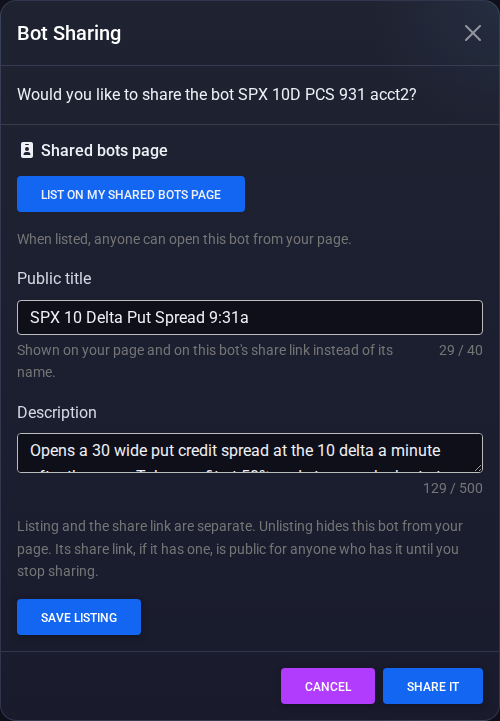
You do not need to click Share It to list a bot. For a bot without a share link, save the listing and close the dialog with Cancel: the bot is listed and no link is created. To take a bot off your page, turn the switch off and click Save Listing (Removed from your shared bots page.). Unlisting keeps the title and description you wrote, so relisting later starts where you left off.
Listed bots carry a small Listed marker next to the share icon on the View Bots page. Your page always shows each bot's current settings, so an edit to a listed bot reaches visitors as soon as you save it. A listed bot stays on the page whether it is turned on or off.
List or unlist several bots at once
On the View Bots page, click Select Multiple, tick the bots, and click Shared Page in the bulk bar. The Shared Bots Page dialog offers Add to Page, which lists the selection (each bot keeps a public title it already has, or uses its own name), and Remove from Page, which takes them off. Neither one creates or stops share links. When it finishes, a notice reports how many bots were added or removed and why any were skipped.
Listing limits and refusals
- Up to 50 listed bots. Past that, saving says You can list up to 50 bots. Unlist one to add another. The newest listings show first on your page.
- Multi-Entry bots are listed whole. List the Multi-Entry bot itself; its entries cannot be listed on their own.
- Archived and deleted bots come off your page. Archiving a bot unlists it and ends its share link, and restoring it later does not bring either back. Deleting a bot does the same.
- Title and description rules. A title that is too long or contains characters names cannot hold gets Titles are up to 40 characters, using letters, numbers, spaces and basic punctuation. A description over 500 characters gets Descriptions are up to 500 characters of plain text.
- Plan changes. On a plan without shared bots pages you cannot list bots, but you can always unlist the ones that are still listed.
Listing versus share links
Listing a bot and creating its share link are separate choices. You can do either, both, or neither, and changing one never changes the other.
| Listed on your page | Share link | |
|---|---|---|
| Who can open the bot | Whoever can see your page: the public, your group, or only you | Anyone who has the link |
| Address | Your page, /shared/YourName | A long link unique to that bot |
| Shown under | The public title | The public title if you set one, else the bot's name |
| Turned off by | Turning off List on my shared bots page, archiving, or deleting | Stop sharing, archiving, or deleting |
Stopping sharing removes the link but not the listing: the Stop Sharing confirmation says so (If the bot is listed on your shared bots page, it stays listed.). When someone opens a share link for a bot that is also listed, and they are allowed to see your page, the bot's page shows a Shared by line that links to your shared bots page. See Share a bot with a link for links themselves.
Bots that cannot be listed
Some bots carry a sharing restriction from where they came from. These cannot be listed or shared with a link, and saving the listing says Sharing isn't available for this bot. It was copied from a bot that doesn't allow sharing.
- Bots copied from a trading group share made with Prohibit Share Links turned on, a copy of such a copy, and bots created from a group-shared Backtick with that restriction. See Share with your trading group.
- Bots someone copied from a shared bots page that was open only to a group at the time (not Public), and bots created from a Backtick run on such a page. This keeps a group's strategies inside the group.
If a bot you already listed picks up a restriction, it drops off your page automatically.
Viewing your own page
Open your page from the Share Link on the card. When you are logged in, the top of the page carries a banner only you see, saying who can see the page. It is a warning when nobody else can. If nothing is listed it adds Your page has no listed bots. with a link to your bots. Each bot row has View and Manage listing in place of the copy and Backtick actions visitors get.
A page that nobody else can open, or that has no listed bots, shows visitors This page isn't available, the same answer a name that does not exist gets. Nothing on that page reveals whether the name is held.
Taking your page down
- Hide it but keep everything: turn off Public and My group. Your name and listings stay put for when you want them back.
- Hide one bot: unlist it.
- Give up the address: release the name. Your listings stay saved, and you have 60 days to reclaim the name.
If your plan changes to one without shared bots pages, your page name is released and held for you for 60 days. Returning to a plan that runs bots during that time gives the name back to you. If you delete your tradeSteward account, your page goes away and the name is held from everyone for 60 days, so an address you posted cannot pass straight to someone else.
tradeSteward can also take down a page name that misuses the feature. A page taken down stops working, its bots are unlisted, and their share links are not affected.