Visiting a Shared Bots Page
Someone sent you a link like www.tradesteward.com/shared/TheirName. That is their shared bots page: a list of option trading bots they chose to share. Here is what you can see on it, and how to copy a bot to your own account or test it with a Backtick first.
What you need
| To | You need |
|---|---|
| Browse a public page and read every bot's settings | Nothing. No account and no login. |
| Browse a page shared only with a trading group | To be logged in as a member of the owner's group. |
| Copy a bot to your account | A tradeSteward account, logged in, with at least one enabled trading account. |
| Run a Backtick on a bot | To be logged in with a Backtick subscription. |
If you are not logged in, the top of the page offers Sign up and Log in. Logging in from there brings you back to the same page.
What's on the page
The page opens with the owner's page name as its heading (Name's shared bots), a badge counting the listed bots, and a line saying what you can do: view a bot's settings, copy it to your account, or run a Backtick. Below that, each listed bot gets a row:
- Title: the public title the owner gave the bot, such as SPX 10 Delta Put Spread 9:31a, with the first two lines of its description underneath. Click the title to open the bot.
- Symbol, Leg Specs, Entry, and Exit: a summary of what the bot trades, how its strikes and expirations are chosen, when it enters, and how it exits.
- Listed: the date the owner added the bot to the page.
- Actions: View, Copy, and Backtick, covered below.
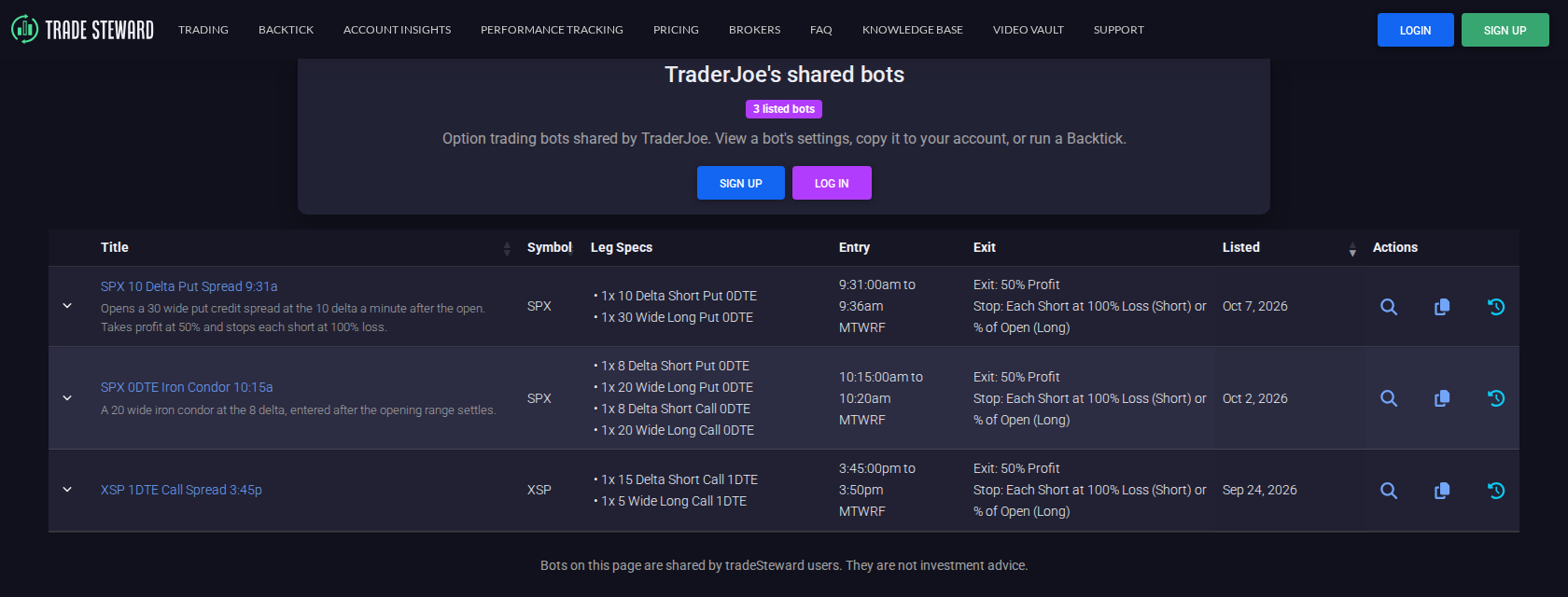
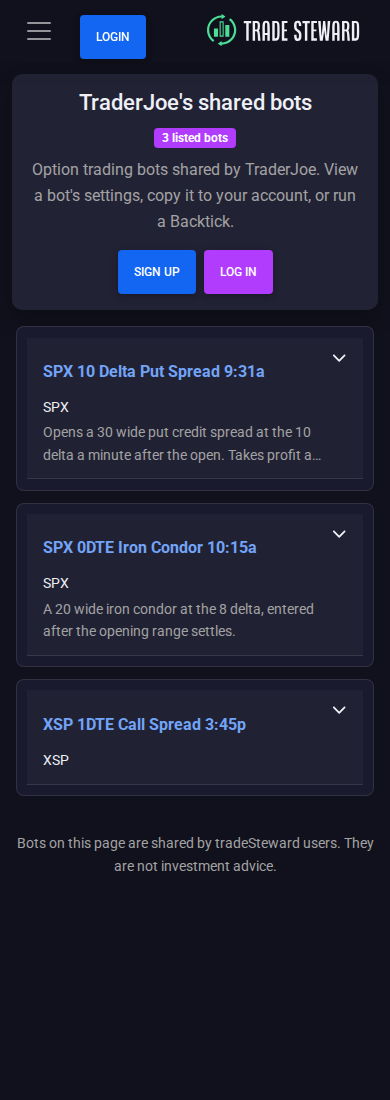
The newest listings come first. Click the Title, Symbol, or Listed heading to sort by that column instead. The expand control at the start of a row shows the bot's full description. On a phone or a narrow window, the table turns into one card per bot with the same details and actions.
A shared bots page shows bots, not results: there are no performance statistics on it. The owner's accounts, trade history, and real bot names never appear. The note at the bottom of every page applies: bots on this page are shared by tradeSteward users and are not investment advice. Running a Backtick is the way to see how a bot would have done.
View a bot's settings
View (or the bot's title) opens the bot's own page, headed Shared Bot with the public title. A Shared by line links back to the owner's shared bots page. Below it, the bot's complete settings appear in the same layout as the bot editor, read only: legs and strike targeting, entry timing and filters, exits, stops, and trade conditions.
Some things stay with the owner and are left out: their notes, their trading account and strategy, settings that point at their other bots (such as dependencies and launch on stop), and the address of any outside entry filter server they use.
For a Multi-Entry bot, a callout above the settings says how many entries it has and that copying it recreates the full Multi-Entry setup, with every entry disabled, in your account. The settings show each entry's time and whether it is on.
The Copy to my account and Run Backtick buttons sit at the top of this page too. If you are not logged in, the Backtick button reads Log in to run Backtick.
Copy a bot to your account
- Click Copy on the page, or Copy to my account on the bot's own page. If you are not logged in, you are asked to log in first.
- A confirmation page asks Copy "title" to your account? and explains that the copy is added to your bots, turned off, and opens next so you can review the settings and choose when to turn it on. For a Multi-Entry bot it adds that the copy includes all of its entries, turned off.
- Click Copy to my account, or Cancel to go back.
The new bot opens in the editor. Nothing trades until you turn it on, so this is the time to check it against your own account:
- Name: a standard bot arrives as New Bot from Share; a Multi-Entry bot is named after the public title. Rename it to something that fits your list.
- Account and sizing: the copy lands in one of your enabled trading accounts. Confirm the account, and review the quantity or sizing for your own buying power. See Position Sizing.
- What is not copied: the owner's notes, any links to their other bots, and webhook control (it starts off). The copy is never listed on anyone's shared bots page, and it has no share link.
The copy is yours from then on. Your trades run on your account and your broker, and later changes the owner makes to their bot do not change your copy.
If the confirmation page says This bot isn't available, the owner has unlisted it or the page is no longer open to you. If it says the bot wasn't copied, check that you have an enabled trading account in Manage Linked Brokers and try again.
Run a Backtick on a bot
A Backtick shows how a bot would have traded over past market data, without adding the bot to your account. Click Backtick on the page, or Run Backtick on the bot's own page, to open Run Backtick on a Shared Bot. Choose a Backtick Name, the Start Date and End Date, your Starting Balance and Commission Profile, and the run options, then click Create & Queue Backtick. The run is created in your Backtick library and queued, and you can open it from there when it finishes. Create Your First Backtick explains each setting and Read Your Backtick Results explains the results.
- The run uses the bot exactly as shared. You cannot edit its settings first; to experiment, copy the bot and work on your copy.
- Settings that depend on the owner's other bots are left out of the run.
- A Multi-Entry bot runs with every one of its enabled entries included. Entries the owner turned off are left out.
- Without a Backtick subscription, the button opens a dialog explaining the subscription instead.
- A run made from a page shared only with your group carries the same restriction as a copy: it cannot be shared publicly, and bots created from it cannot be shared or listed.
Bots shared by link
A bot can also reach you through its own share link instead of a page. That link opens the same Shared Bot view with the same Copy and Backtick options. If the bot is also listed on its owner's shared bots page and you are allowed to see that page, a Shared by line links to it.
Want a page of your own?
If you are on a plan that runs bots, you can publish your own page and list any of your bots on it. Your Shared Bots Page walks through claiming a name, listing bots, and choosing who can see it.