Run a Trading Group
Group administrators manage members, invite codes, tiers, group tags, shared bot and Backtick access, and, for subscription-managing groups, pricing and billing from the Group Management pages.
The Group Management hub
If you administer a group, a Manage Group button appears in the Trading Group card of Account Settings, and Group Administration appears in your account menu (the user icon in the top bar). Both open the Group Management hub, which carries the Group Information card:
- Group Logo: upload a PNG, JPG, or GIF up to 2MB. It is compressed and resized automatically and shows in members' navigation bars and on the group's shared bots and shared Backticks pages.
- Update Group Name: rename the group at any time.
- Global Invite Code: your always-on invite code, with a link to Manage Invite Codes.
- Group Shares: Default copied bots to quantity 1 starts members' copies of group shared bots at a quantity of 1. Groups that manage their members' subscriptions also get Allow member pages, which lets members open their shared bots pages to the group; see Trading Group Member Pages.
In groups that do not manage subscriptions, the hub also counts what your group is sharing, with Shared Bots and Shared Backticks tallies linking to the two group listings. Every hub carries the Group Tags button for the tags page described below.
Members
The User Listing page shows everyone in your group. Standard groups list each member's Display Name, how many bots they have shared, and their tiers. Subscription-managing groups also show names, email addresses, subscription type, and status, and can resend a member's subscription activation email.
From the Actions column you can make a member an admin, remove admin rights, or remove a user from the group entirely. You can also select several members and use Apply to Selected to assign tiers in bulk.
Invite codes
The Invite Codes page manages two kinds of codes:
- Multiple User Invite Code: the group's global code. Any tradeSteward user who has it can join, so treat it like a key. You can enable it, copy it to share, or disable it at any time.
- Individual Invite Codes: single-use codes you create per person. The table tracks who created each code, who used it and when, and its status, and you can expire a code that should no longer work.

Membership tiers
Tier Management defines your group's Bot Access Tiers. Each tier has a name, sort order, badge color, an optional description, and a flag marking it as the default tier for new members. Deleting a tier lets you reassign its members to another tier in the same step.
Tiers control which shared bots and Backticks a member can see. Assign tiers to members from the User Listing page, and in subscription-managing groups you can also map each subscription type to tiers so access follows the plan a member pays for.

Shared bots, shared Backticks, and access control
Members share bots and Backticks to the group from their own accounts, as described in Clone, Share, and Import Bots and Group Shared Backticks. As an administrator, the Group Shared Bots and Group Shared Backticks pages give you controls members do not have:
- A Tiers column showing which tiers can access each share.
- Share Settings, per share or in bulk, to set Allowed Tiers on one or many shares at once, in groups with subscription management and tier-restricted sharing.
- Stop Sharing and Manage Tags on any share in the group, per row or in bulk. Members can only manage the shares they created themselves.
Group Tags
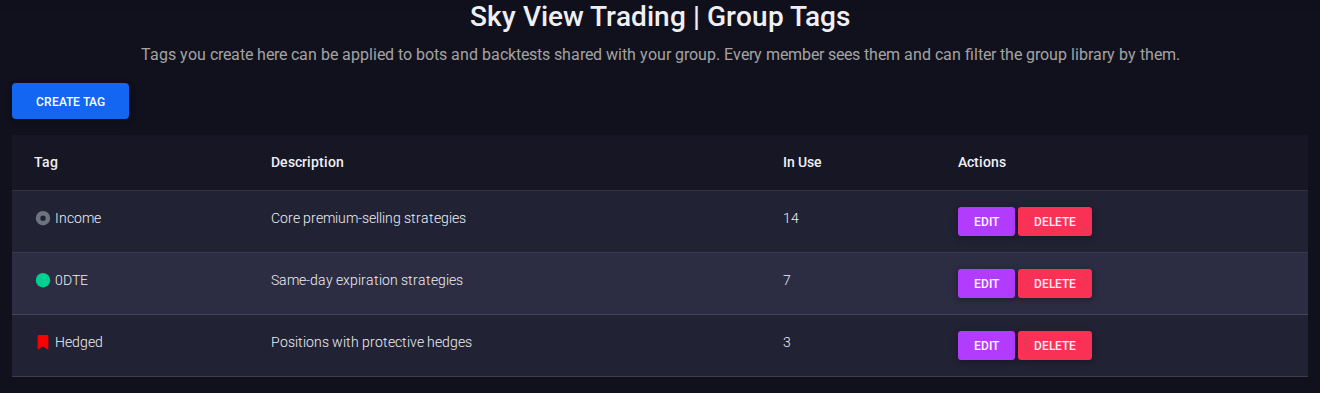
The Group Tags page, reached from the hub, manages the tag set your group organizes its shares with. Tags you create here can be applied to bots and Backticks shared with the group, by the sharer or any administrator, and every member can filter the group listings by them. Each tag has a name, color, icon, and optional description, and the table shows how many shares each tag is on. Every tag needs its own combination of icon and color, so no two tags in your group show members the same pill; if you pick a pair another tag already uses, the page tells you which one has it. Hovering a tag pill anywhere in the group listings shows its name and description, which is how members read a pill that shows only an icon. Group tags are separate from members' personal tags: they belong to the group, only administrators create or edit them, and they only ever appear on shared items. Administrators can also create a group tag on the spot from the sharing window with its New Tag button.
Pricing and billing for subscription-managing groups
Groups that manage member subscriptions get three more pages, plus billing cards on the hub in place of the sharing tallies:
- Pricing Table: the volume pricing currently in effect for your group, broken out by plan and member count.
- Invoices: your invoice history with the group's current balance, and a detail view for each invoice including the pricing table that was in effect for that period.
- Group Billing Logs: a running log of billing events, with the member, subscription type, action, and related invoice for each entry.
The hub's Subscription Management card also shows your current subscriber count and monthly cost, and holds the group's webhook key, which you can reveal or cycle if your group runs its own integrations.